.jpeg)
TLDR
Why I wanted teams to start with real test cases immediately
Why I wanted teams to start with real test cases immediately
I’m the CRO at Thunders, managing both the sales and marketing teams, and one recurring problem we see with new users is not about the product itself — it’s about the first steps.
When a team starts using Thunders, the hardest part is often not running tests. It’s creating the first relevant, realistic, executable test cases.
Most new projects begin empty, and teams need to:
- decide what to test,
- write scenarios,
- create test data,
- configure environments,
- and make sure everything actually runs.
That can slow down onboarding, POCs, and trials. And when the first experience takes too long, people don’t see value fast enough.
During the MCP hackathon, I wanted to see if we could go from just a website URL → to runnable, stabilized test cases inside Thunders, with no manual setup.
So I connected Thunders MCP to Claude, and built a prompt that analyzes a website, finds the correct project, creates adaptive end-to-end tests, manages environment variables, and makes the tests immediately executable.
The goal was simple:
help anyone starting on Thunders begin with working tests from day one.
Prompt used
Below is the exact prompt I used during the hackathon.
It is designed to:
- analyze a real website,
- find the matching project in Thunders,
- generate realistic end-to-end test cases,
- create environment variables when needed,
- and ensure the tests actually run without manual fixes.
🧠 Prompt (copy/paste)
Use Thunders MCP Add test cases to an existing customer project based only on the following URL:<URL>
If the provided URL does not include a protocol, automatically prepend https:// before using it.
1. Analyze the website at the normalized URL:
- Detect the brand or product name associated with the website.
- Detect the primary language of the website (English or French) and use this language consistently for all test cases and steps.
- Identify how real users interact with this website by observing navigation, available actions, and user flows.
- Do NOT assume the business model (e-commerce, SaaS, insurance, etc.). Base decisions only on actual website behavior.
2. Locate the existing Thunders project:
- Find an existing project whose name matches the detected brand or domain name.
- If multiple projects match, select the closest match.
- If no matching project exists, stop and report that the project was not found (do NOT create a new project).
3. Before creating test cases:
If any test requires credentials, user data, or reusable values (email, password, name, phone, address, tokens, etc.):
- Check whether an Environment named "Default" already exists in the project.
- If it exists, reuse it.
- If it does not exist, create it.
- Create all required variables in this Environment using realistic but fake data.
- Use clear UPPER_SNAKE_CASE variable names (e.g. TEST_USER_EMAIL, TEST_USER_PASSWORD).
- Never hardcode credentials or personal data directly in test steps.
- Reuse the same variables consistently across test cases.
4. Create exactly 3 of the most relevant end-to-end test cases for this website. The test cases MUST be selected dynamically based on real user behavior observed on the website.
The 3 test cases must cover:
I. Discovery & Access
- Validate that a user can access the website and reach a meaningful page (e.g. homepage → feature page → product/content screen → dashboard entry).
II. Core User Action
- Identify the primary purpose of the website and validate the main action a real user performs on it.
III. Progression / Persistence
- Validate how the user progresses after the core action, choosing the most relevant option that actually exists on the website:
- sign up or log in.
- save or access results.
- complete a multi-step flow.
- access a dashboard or account area.
- submit a form.
- Do NOT force checkout, payment, authentication, or lead forms if they do not exist.
5. For each test case:
- Validate how the user
- Generate complete, executable, step-by-step test steps
- Handle optional elements conditionally (cookie banner, optional fields, variants).
- Use Environment variables whenever user data or credentials are required.
- Add validation steps after each key action.
- Ensure steps reflect real UI behavior and user expectations.
- Never perform irreversible actions (do not submit real payments or destructive actions).
6. After creating all test cases and steps:
- Run all the tests.
- Automatically adapt, adjust, or fix the steps as needed so that all tests are functional and operational.
- Ensure tests can be executed reliably without manual intervention.
7. Final result:
- Existing project successfully identified.
- Environment and variables reused or created if needed.
- 3 relevant and adaptive test cases added to the project.
- Functional test steps generated.
- Tests executed and stabilized.
- Notes on customizing the prompt
- Replace
<URL>with the website you want to test - The project must already exist in Thunders
- Test cases are generated from real website behavior
- Variables are created automatically if needed
- Tests are executed and stabilized automatically
- Replace
Video demo
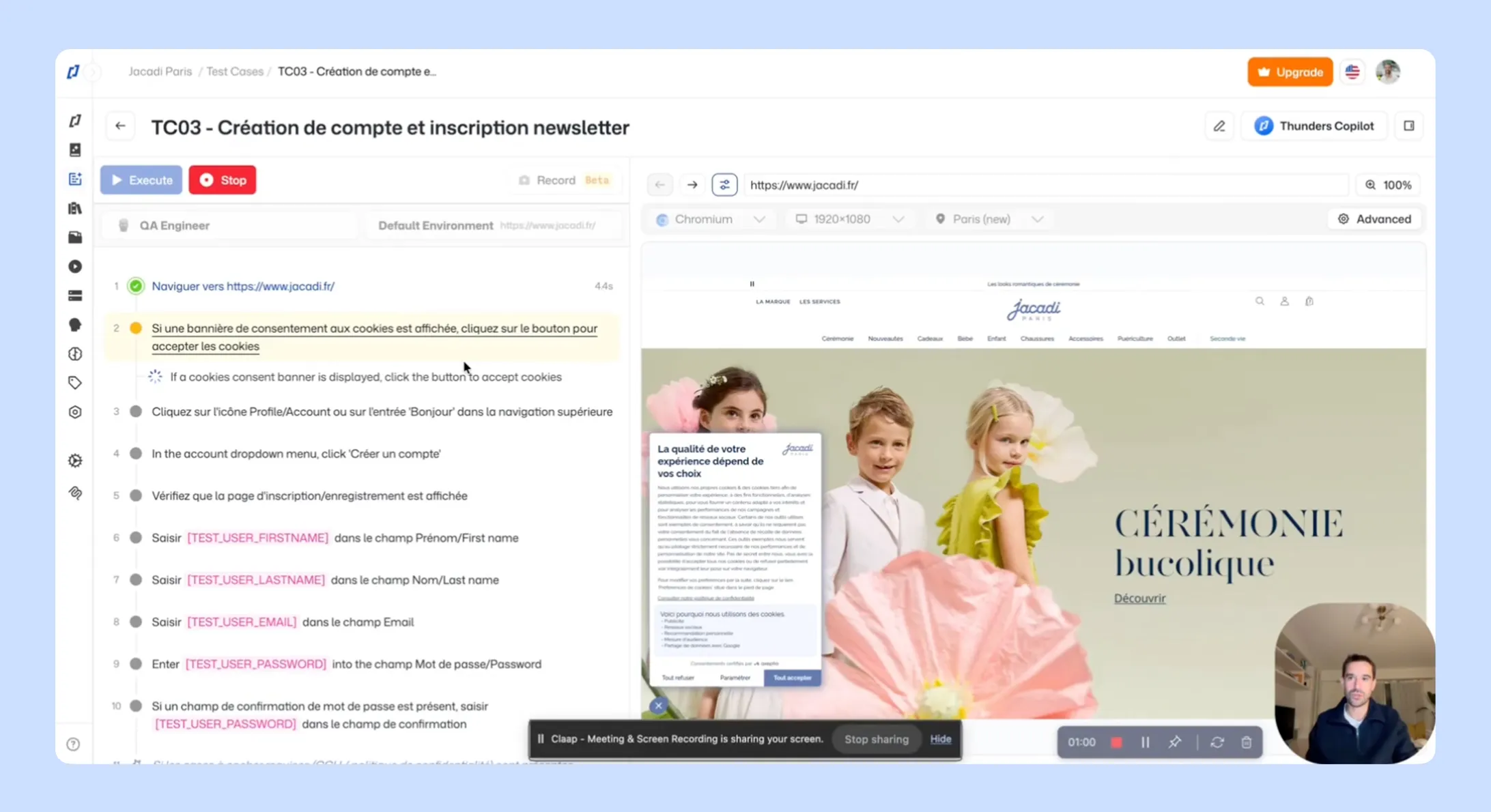
In the demo, I show how I start from a website URL, run the prompt inside Claude, and let Thunders MCP automatically add executable test cases to an existing project.
Demo: using Thunders MCP inside Claude to generate executable tests from a website
- What the video is showing
- Open Claude with Thunders MCP connected
- Paste the MCP prompt with a website URL
- Claude calls Thunders MCP
- MCP analyzes the website
- MCP detects the brand and language
- MCP finds the existing project in Thunders
- MCP checks or creates the Default environment
- MCP generates variables if needed
- MCP creates 3 adaptive end-to-end test cases
- MCP generates full steps with validations
- MCP runs the tests
- MCP automatically fixes steps until tests pass
- Open Thunders and show:
- the existing project
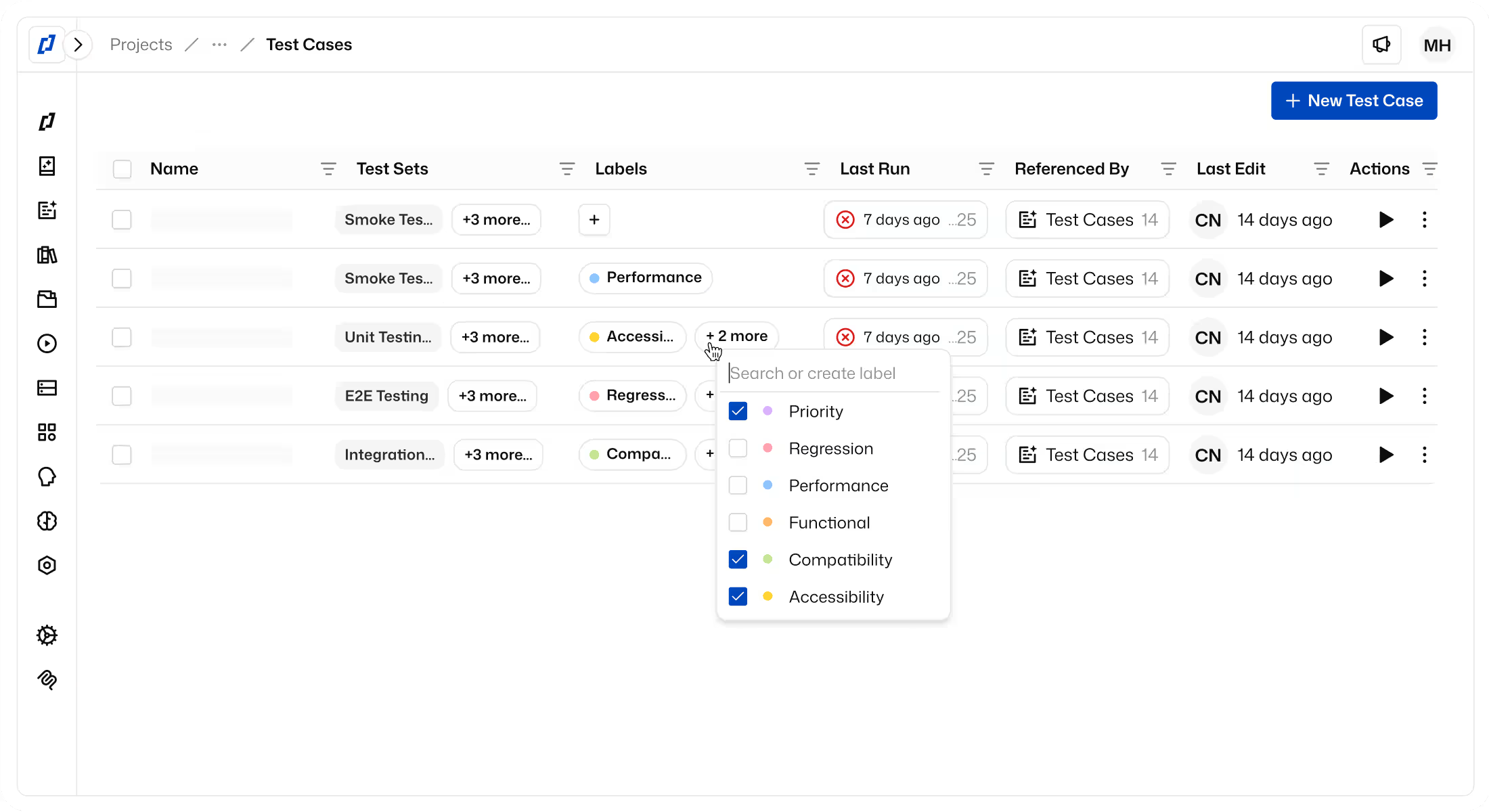
- the new test cases
- the environment variables
- the generated steps
- the successful executions
Conclusion
For me, Thunders MCP inside Claude changes the way teams can get started on Thunders.
Instead of beginning with an empty project, you can start with:
- relevant end-to-end test cases
- reusable environment variables
- executable steps
- and tests that already run
This makes onboarding faster, POCs easier, and trials much more meaningful.
The biggest win is that users can see value immediately, without spending hours preparing their first scenarios.
During the hackathon, the goal was to show how MCP can connect Thunders and AI to remove friction at the very beginning.
With this workflow, going from website URL → adaptive test cases → ready project only takes a few minutes.
And that makes a huge difference when getting started with Thunders.