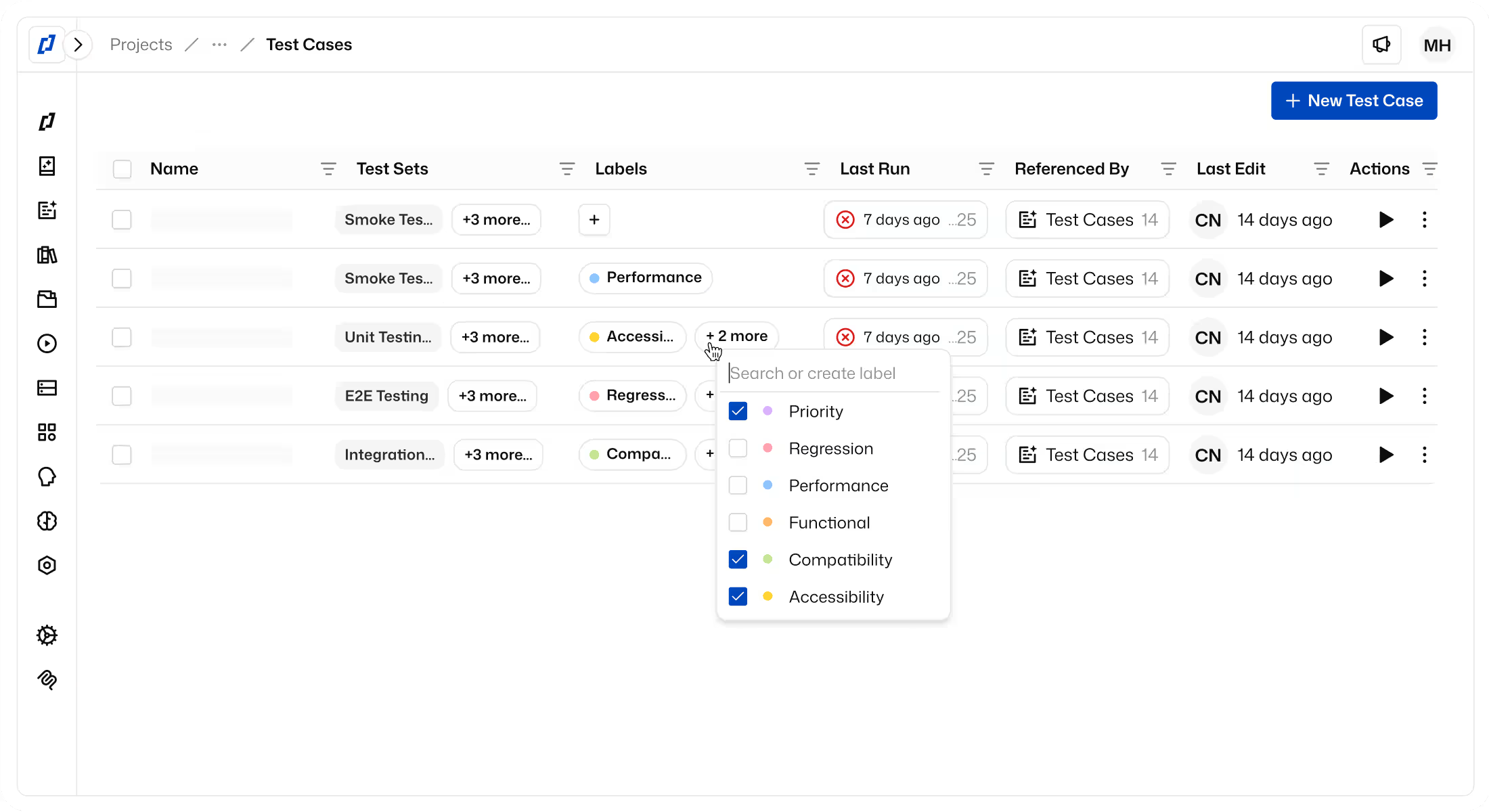
Jira x Thunders
Keep requirements and test coverage connected. Turn Jira tickets into tests with Thunders AI, report bugs back from failed steps in one click, and sync results to your issues. The loop between what should work and what actually works stays closed.













Close the loop between Jira tickets and test coverage
Turn Jira tickets into accurate, QA-ready tests with Thunders AI.
Report bugs to Jira in one click with screenshots, expected vs. actual, and the execution path.
Sync test results back to Jira. Thunders AI updates the original ticket so anyone reviewing the issue sees what passed and what did not.
How to set up Jira with Thunders
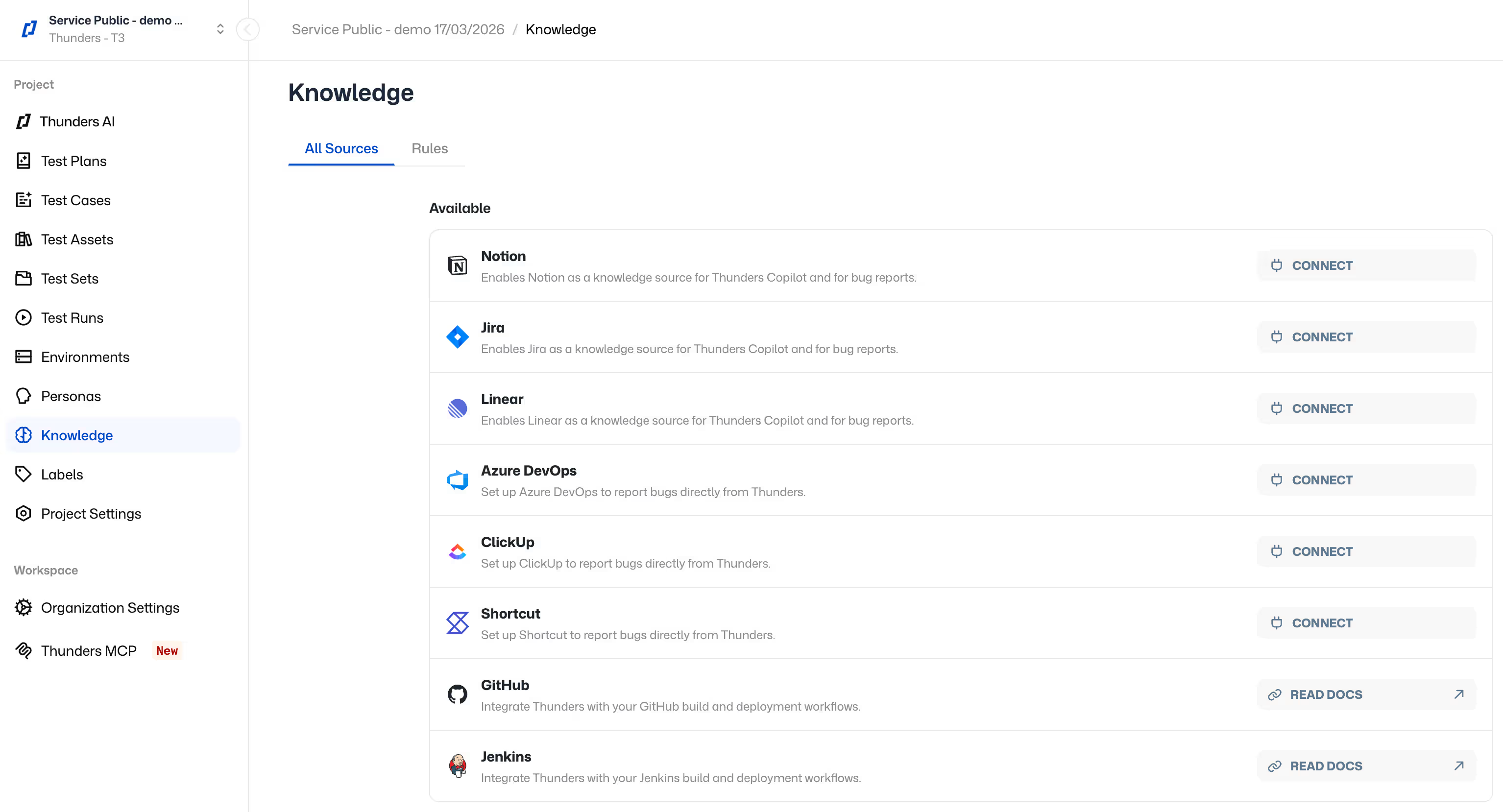
Step 1: Connect your Jira workspace
Go to Knowledge > All sources. Connect your Atlassian account. Thunders gets access to your workspace. For bug reporting, you choose which project the bug lands in.
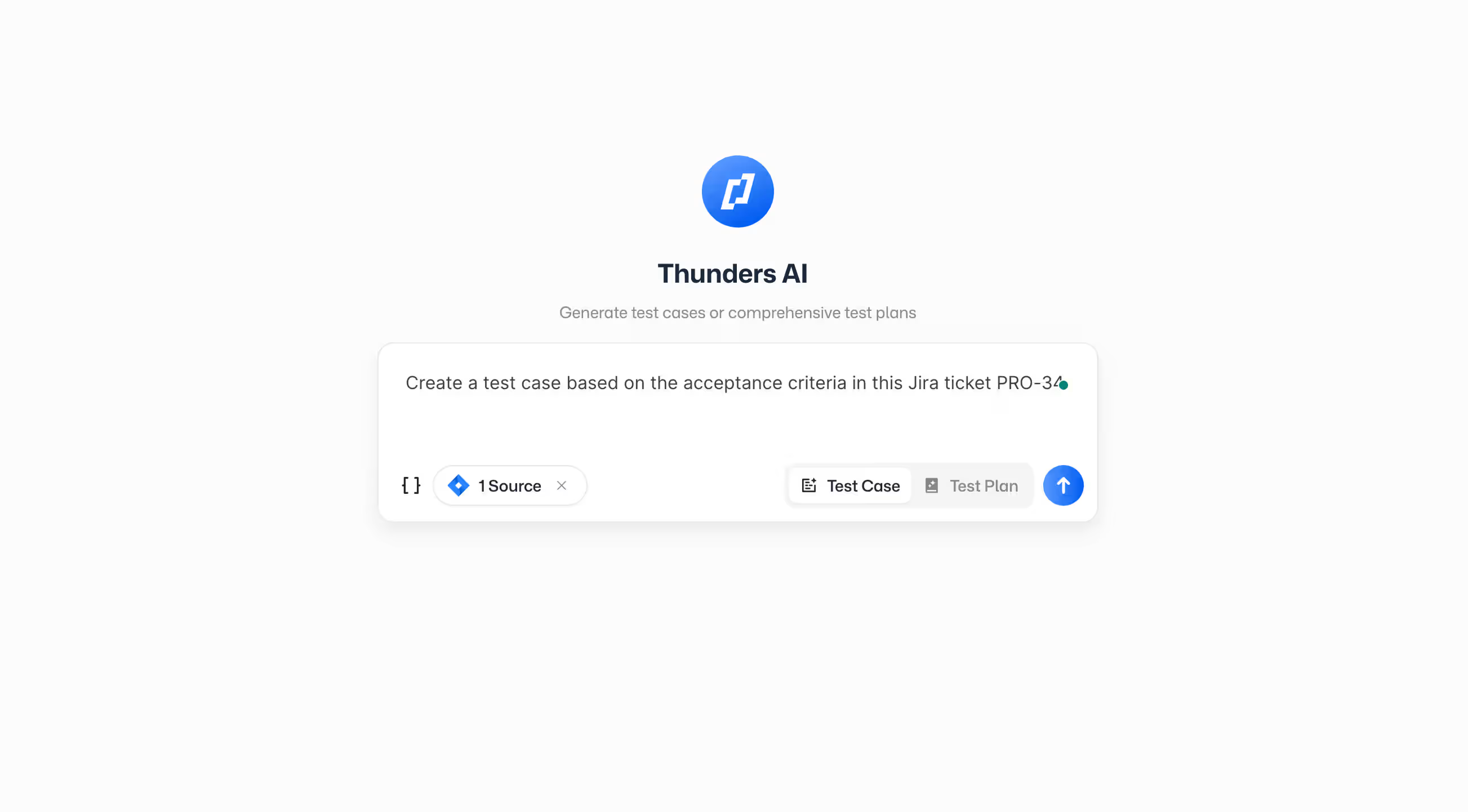
Step 2: Turn Jira tickets into tests
Open Thunders AI. Paste a Jira ticket URL or reference the issue ID. Thunders AI reads the description and acceptance criteria, and because it knows your existing tests and project context, it generates accurate test steps with the right validations.
Step 3: Run tests and sync results
Execute the generated tests. Thunders AI syncs results back to the Jira ticket. Failed steps include links to the full execution report.

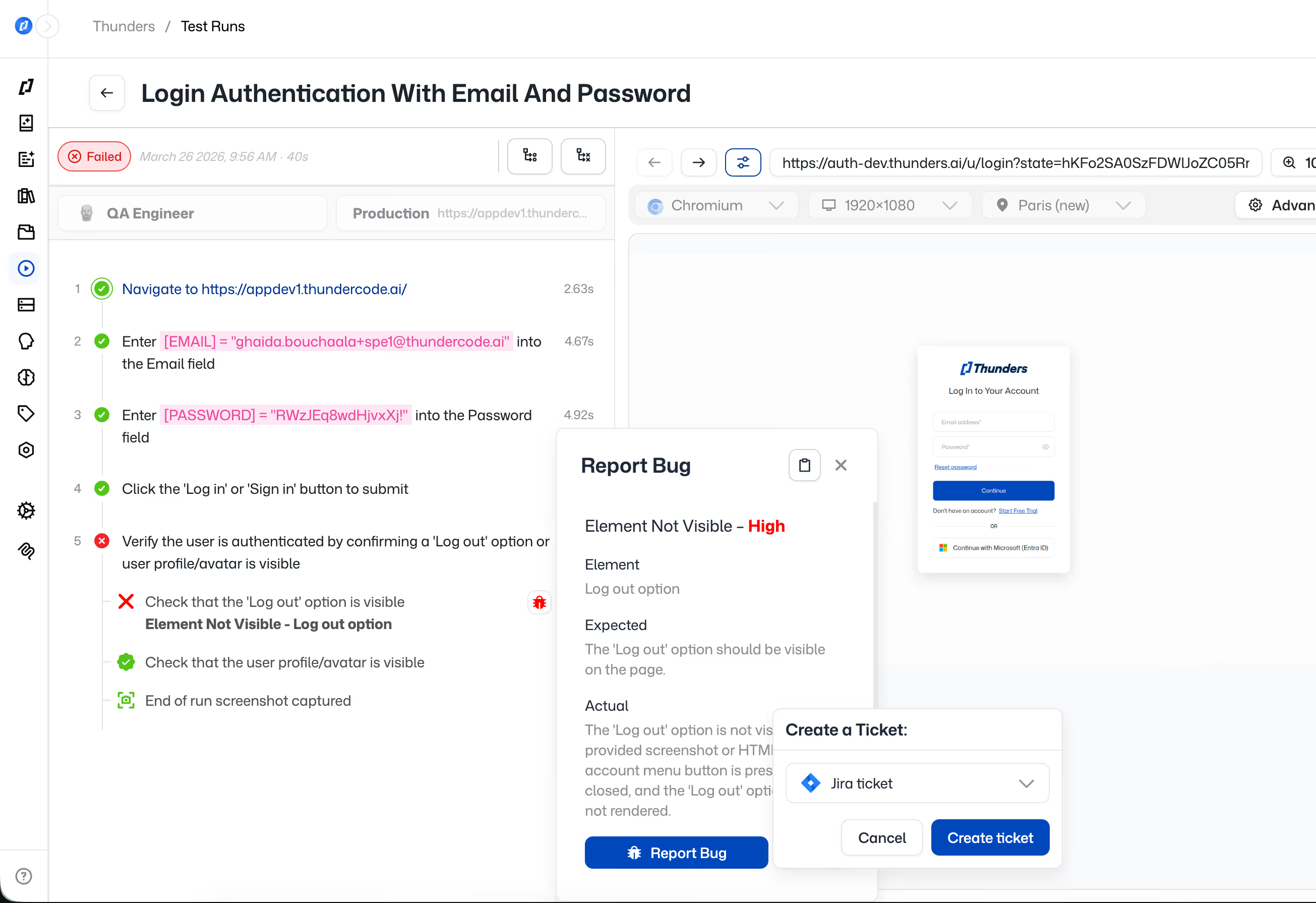
Step 4: Report a bug from a failed step
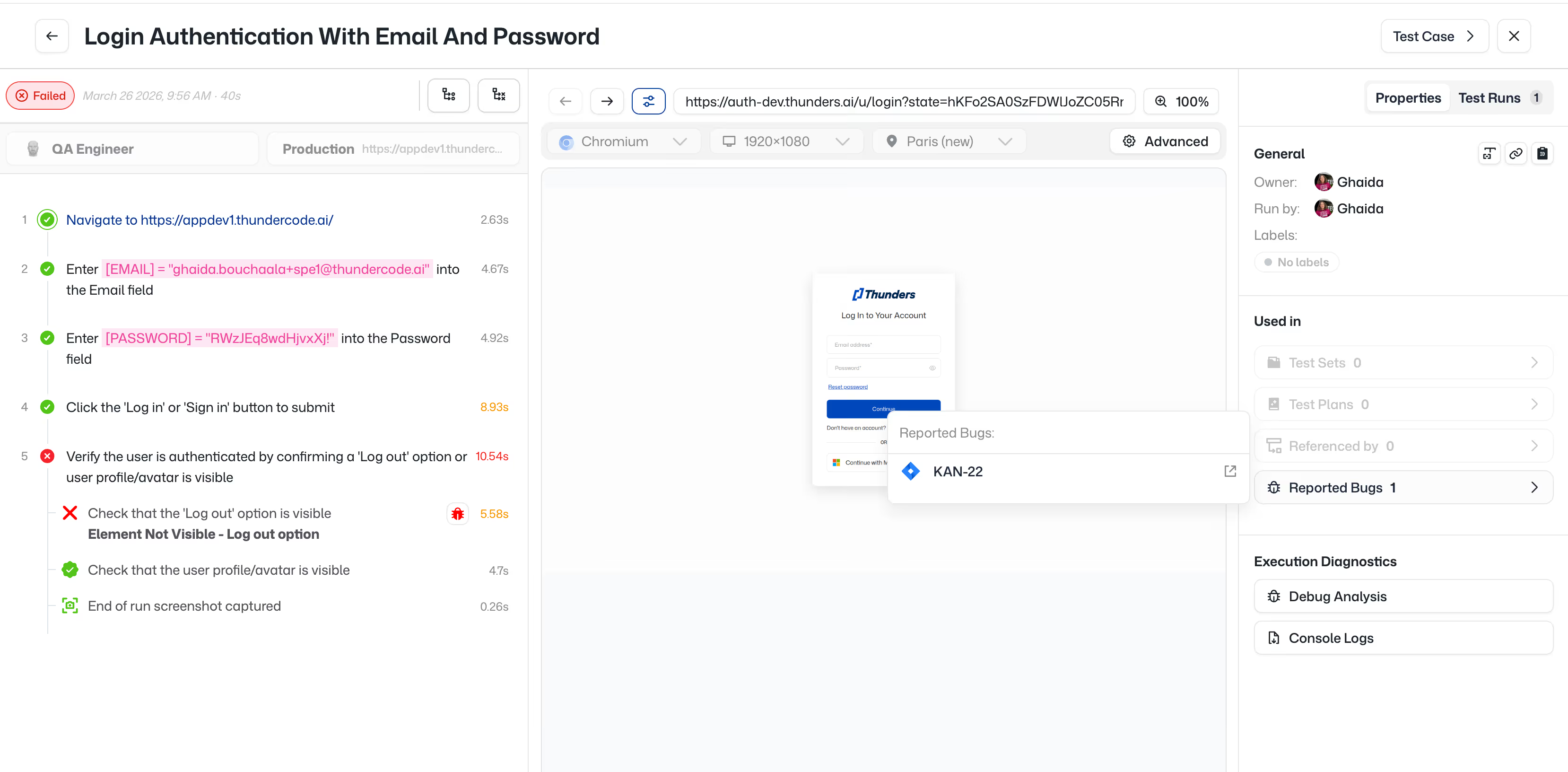
When a test step fails, click 'Report Bug.' Thunders creates a new Jira issue pre-filled with the failure context: step description, expected vs. actual, screenshot, and execution link.
Step 5: Navigate between Thunders and Jira
Every reported bug links to the test and the run it came from. Jump from the Jira issue back to the exact failure in Thunders. Fix the code, re-run the test, and close the loop.
Ready to ship faster with smarter testing?