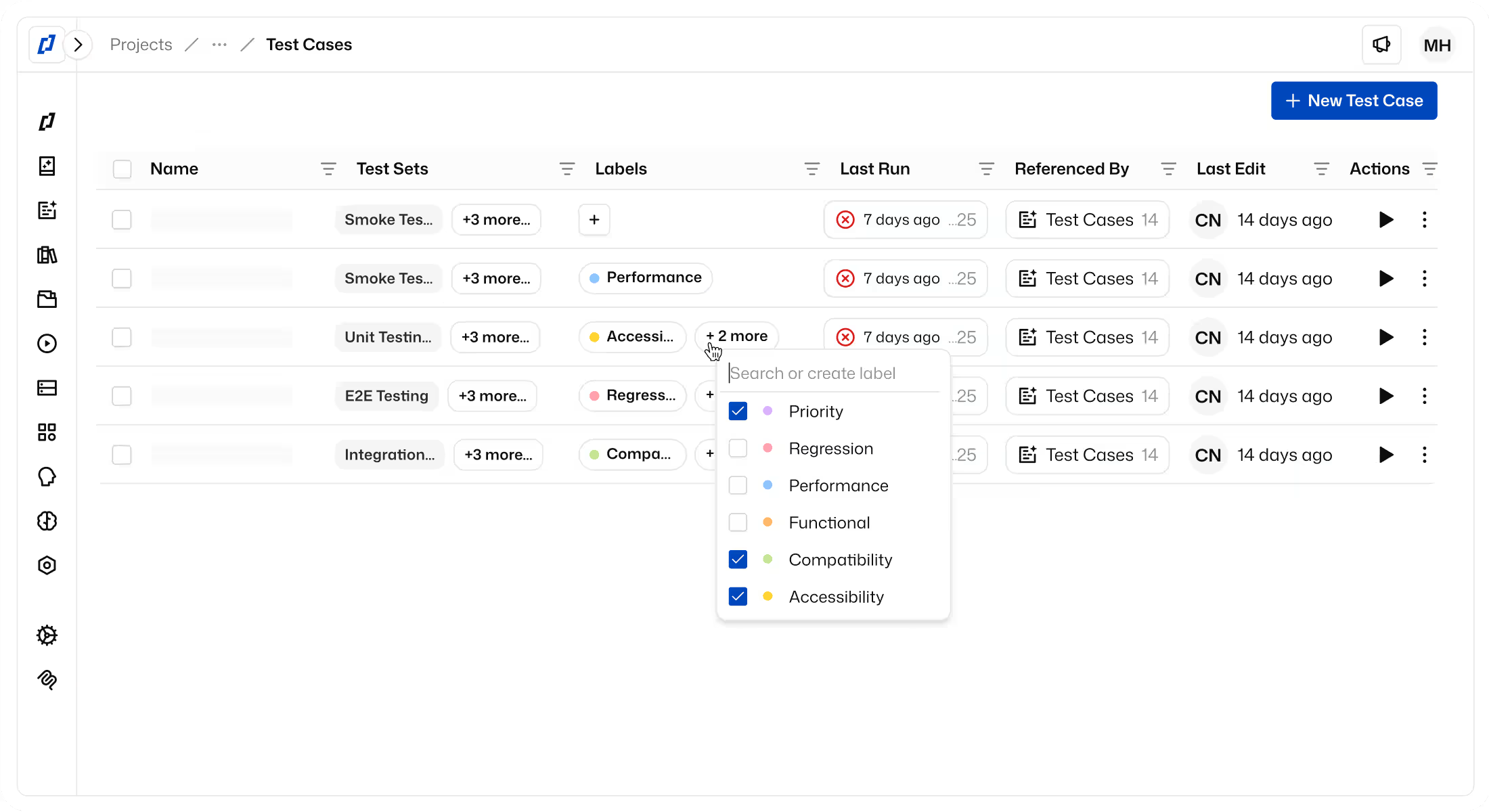
Xray x Thunders
Keep your Xray test management layer in sync with AI-powered execution. Bring your Xray tests into Thunders with Thunders AI, execute them with AI personas, and push results back. Teams using Xray for traceability get execution power without losing their structure.













Bridge test management in Xray with execution in Thunders
Bring Xray tests into Thunders with Thunders AI. Whether your tests are step-based or Gherkin, the structure and traceability carry over.
Push execution results back to Xray with pass/fail status, screenshots, and evidence. Traceability stays intact.
Read the acceptance criteria from a Jira story and create matching test cases, in both Thunders and Xray, keeping both systems aligned from day one.
How to set up Xray with Thunders
Connect your Xray instance
Go to the Connectors page. For Xray Cloud, connect with your Client ID + Client Secret (Thunders auto-detects your regional endpoint). For Xray Data Center, connect Jira Data Center first. Thunders detects the Xray add-on and prompts you to enable it. Xray connections are personal: each teammate connects with their own credentials.
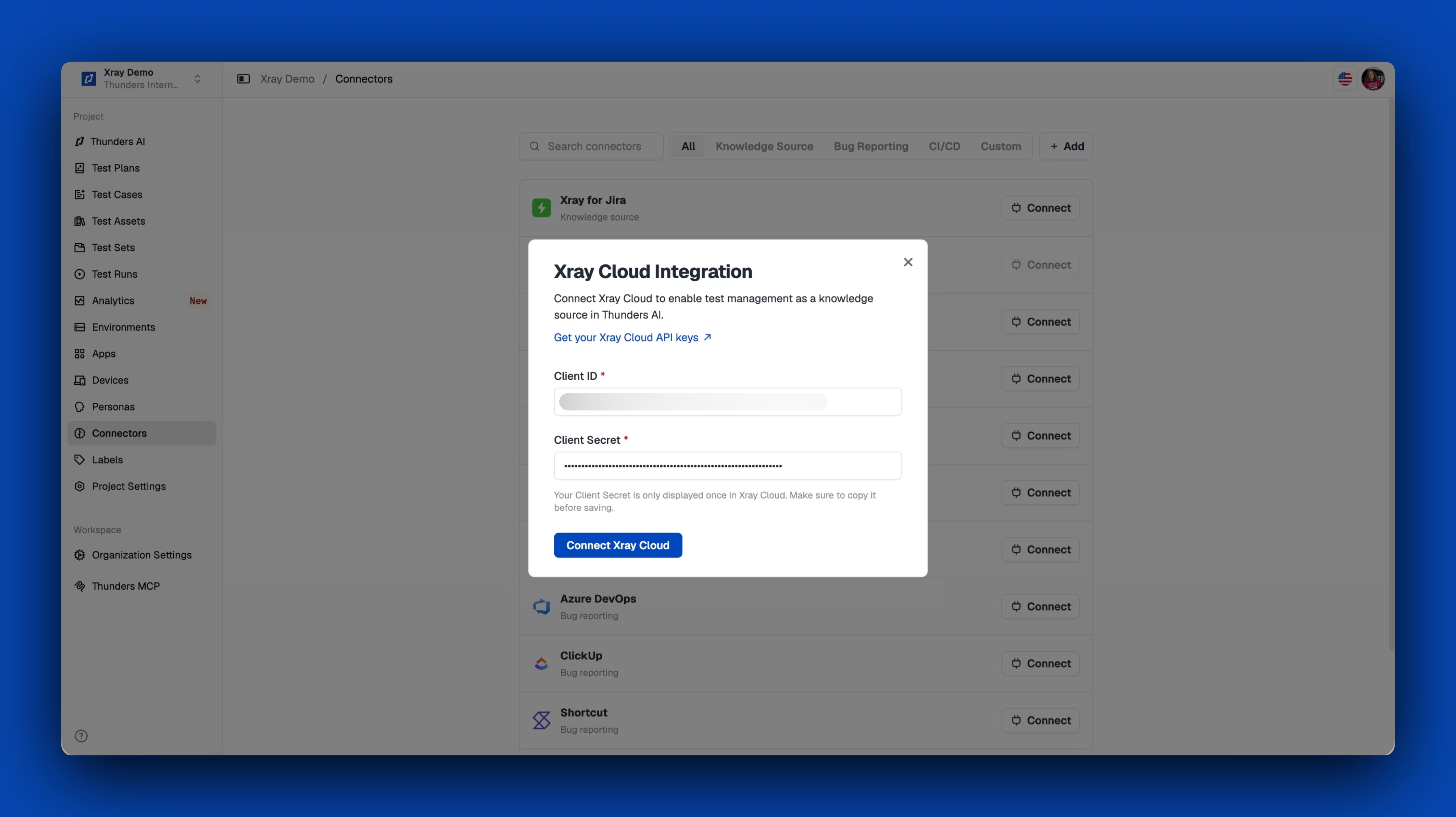
Bring Xray tests into Thunders
Provide an Xray test key or search for a specific one using Thunders AI. It reads the steps, structure, and metadata, and creates a matching Thunders test case with full traceability back to the original Xray issue.
Create new tests in Xray from Thunders
Generate a test case in Thunders, then have Thunders AI write it back to Xray as a new test issue, keeping both systems aligned from day one.
Run tests and push results back
Execute the imported tests in Thunders with any AI persona, browser, and environment, then sync the test execution back to Xray with one click. The synced execution includes the overall status, per-step results, screenshots, and evidence, so Xray stays aligned with what happened in Thunders.
Import entire Xray Test Plans in one go
Connect Xray Cloud or Data Center and point Thunders AI at a Test Plan. It reads the plan, imports every test in it as a ready-to-run Thunders test case, and keeps each one linked to its Xray source. Run them with Thunders agents, then sync results back to Xray with one click: overall and per-step status, screenshots, and timestamps.
- Batch import: one prompt brings in the whole Test Plan
- Every imported test stays linked to its Xray ticket
- Results flow back to Xray as native Test Executions
Ready to ship faster with smarter testing?